
Which controller is right for your machine or vehicle? Start with what you want to control
Published on: November 19th, 2026 · Author: Jaap Terhaard
You’re developing a machine, vehicle or installation. Perhaps you want to control a hydraulic valve, measure the position of a component or read data from an existing system. You need a controller to do this, but how do you determine which connections and functions it should have?
The GOcontroll Configurator helps you find out. Tell it what your application needs, and it suggests suitable controllers and modules.
You don’t need to have every technical answer straight away. In this article, we use practical examples to explain what the different connections can do and how to take your first steps in the configurator.
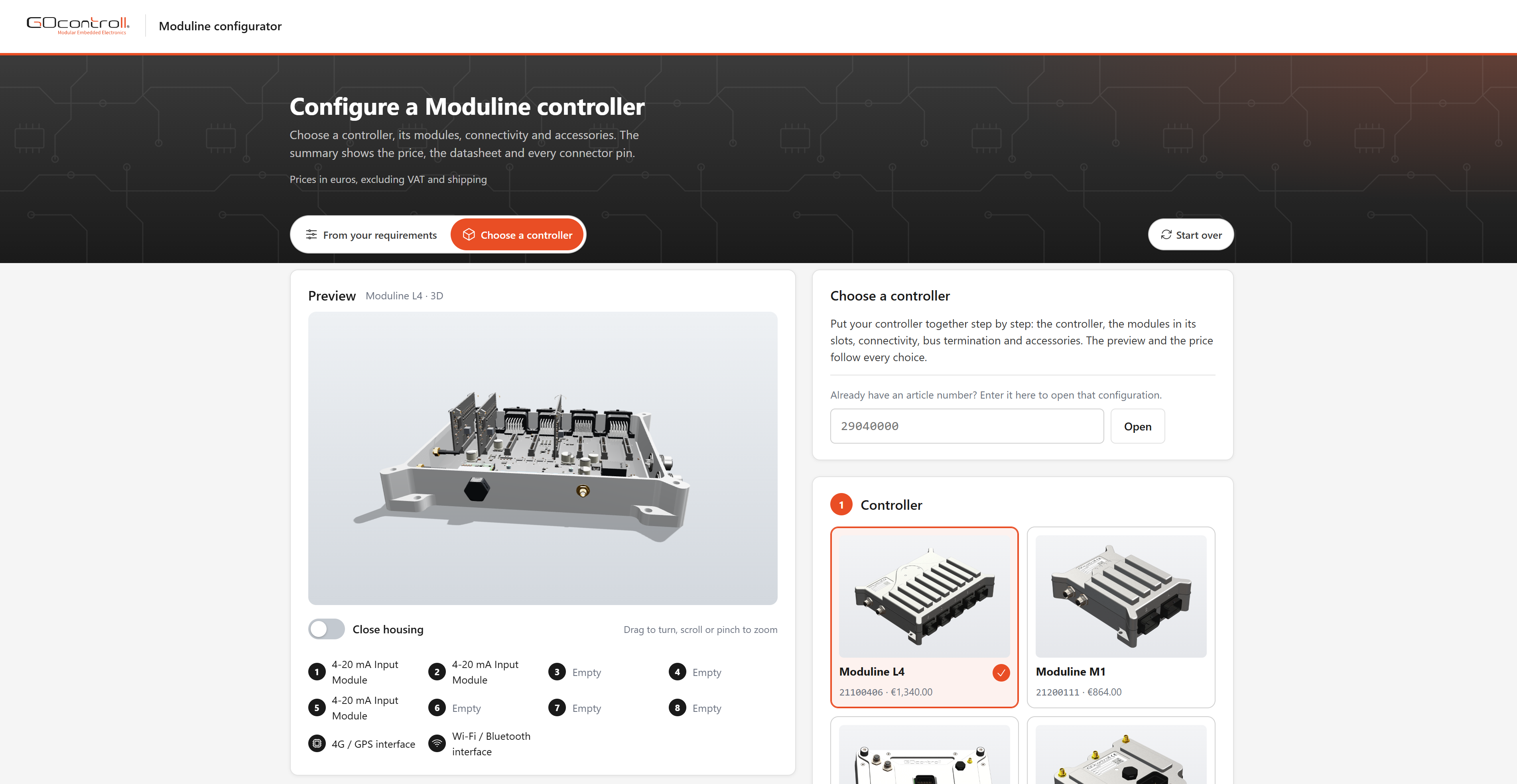
From application to controller: how does it work?
Think of a controller as the brain of your machine. It receives information, processes it according to the programmed software and controls connected components.
Take a machine with a hydraulic function, for example:
- A sensor measures the position of a component.
- The controller receives and processes that information.
- The controller operates a valve to move the component.
- A display shows the operator what the machine is doing.
To make this possible, the controller needs different connections. In the configurator, these are divided into three main groups:
- Inputs: what information comes into the controller?
- Outputs: which components do you want to control?
- Communication: which devices or systems should the controller connect to?
Let’s take a closer look at each one.
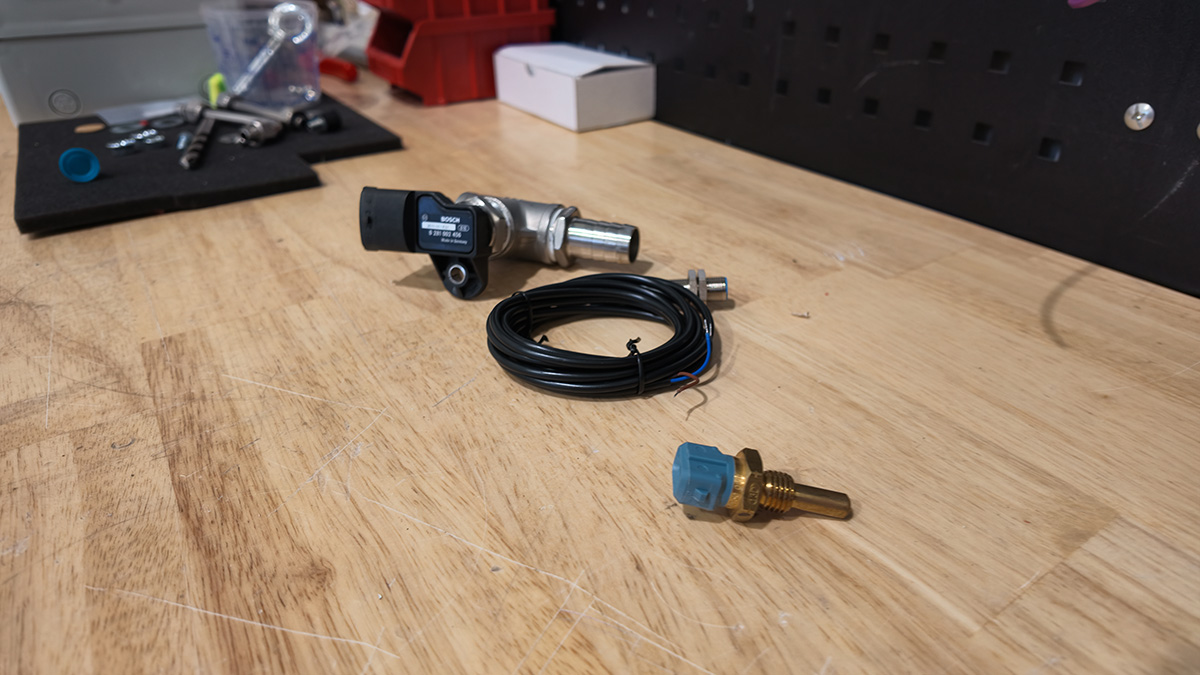
1. Inputs: what information does your controller need?
An input receives information from a sensor, switch or another component. This tells the controller, for example, how hot something is, how fast something is rotating or what position a component is in.
Analogue inputs: measuring values that change
An analogue sensor sends a value that can change gradually. Examples include:
- A pressure sensor measuring pressure in a hydraulic system.
- A position sensor showing how far a component has moved.
- A pedal sensor registering how far a pedal is pressed.
- A sensor measuring the position of a joystick.
In the configurator, you can choose between different analogue inputs, including 0–5 V and 0–12/24 V.
What should you enter? Check your sensor’s specifications to see which output signal it provides and how many sensors you want to connect. For example, if you have two sensors with a 0–5 V output, you can start by selecting two inputs of that type.
Not sure which signal your sensor provides? Check its datasheet or discuss your application with GOcontroll.
Digital inputs: on or off?
A digital input typically registers two states: on or off. It can tell the controller whether:
- A switch has been pressed.
- A door or hatch is open or closed.
- A machine function is enabled.
- Another system is sending a status signal.
The configurator distinguishes between digital signals at 5 V and 12/24 V. The right choice depends on the signal your component provides.
Measuring speed and position
Do you need to know how fast a shaft is turning, how much liquid is flowing or how far a component has moved? Your application may use a frequency signal or an encoder.
- The rotational speed of a shaft.
- A speed signal from a machine component.
- A flow sensor that produces pulses.
- An encoder that measures movement or position.
In the configurator, these are listed as frequency / speed inputs and encoder channels. Some encoders require multiple channels, so check the encoder’s specifications before selecting the number you need.
4–20 mA: sensors for industrial applications
Some industrial sensors use a 4–20 mA signal. You may find this type of signal on pressure or level sensors, for example.
If your sensor has a 4–20 mA output, you can enter the number of inputs you need in the configurator. Also check the sensor’s power supply and connection requirements.
Load cells: measuring weight and force
A load cell is a sensor that measures force or weight. It can be used in a machine’s weighing system, a dosing installation or a test setup.
If you want to connect load cells, you can enter the required number in the configurator. The right sensor and configuration depend on factors such as the required measurement accuracy and the application.
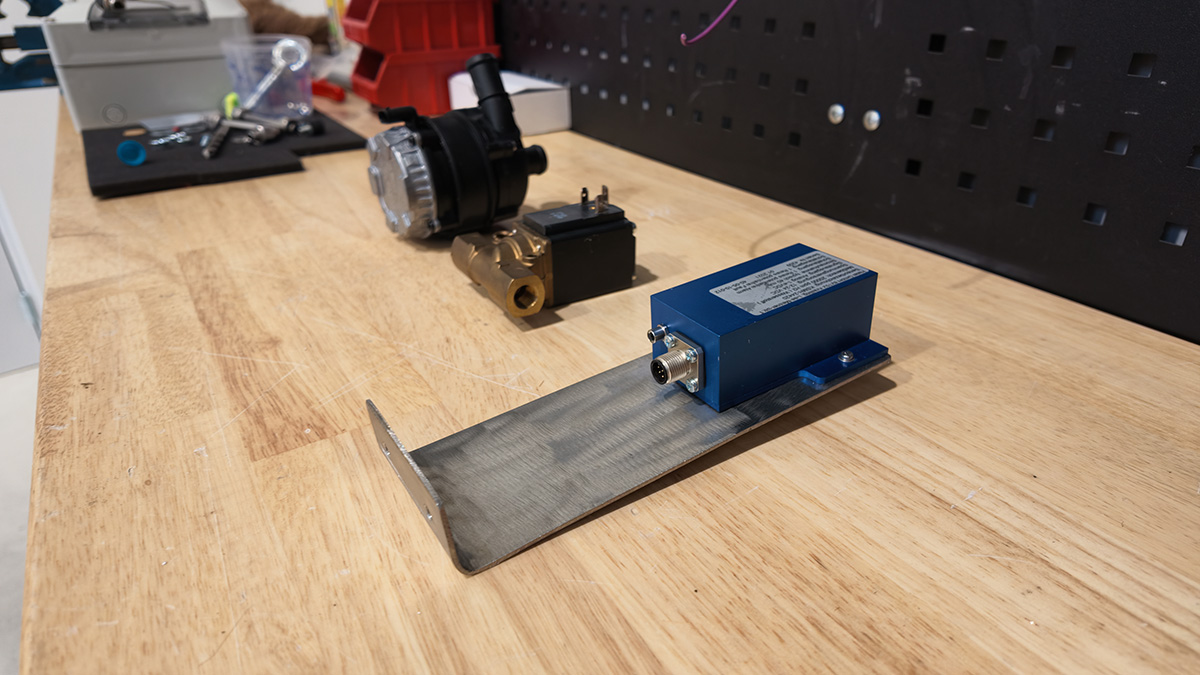
2. Outputs: what do you want to control?
An output sends a signal or power to a component. This allows the controller to switch on a light, operate a valve or move a motor, for example.
Switching lights, relays and small components
Do you want to switch on a warning light, operate a relay or switch a small valve? A switched output may be a suitable option.
- An indicator light on a machine.
- A relay for an additional function.
- A small valve that needs to open or close.
- A warning signal.
Always check the current required by the connected component and the voltage used.
Controlling valves and actuators
Some components need more than a simple on/off signal. A proportional hydraulic valve, for example, can regulate how much oil flows through it.
For this type of application, the configurator includes power outputs with PWM. PWM is a way of controlling an output that, depending on the application, can be used to regulate a valve or actuator.
- A proportional hydraulic valve.
- An actuator that moves a machine component.
- A solenoid or solenoid valve.
- A function requiring more control than simply on or off.
Higher-current components and motors
Do you want to operate a higher-current component, such as a suitable pump or actuator? Or does a DC motor need to turn in both directions? The configurator includes options for high-current outputs and DC motors.
The right connection depends on the voltage, continuous current, peak current and how the component needs to be controlled. Check these details before making a final choice.
Practical tip: for each component, write down what it is, how many you want to connect and which voltage and current it requires. That gives you a useful starting point.
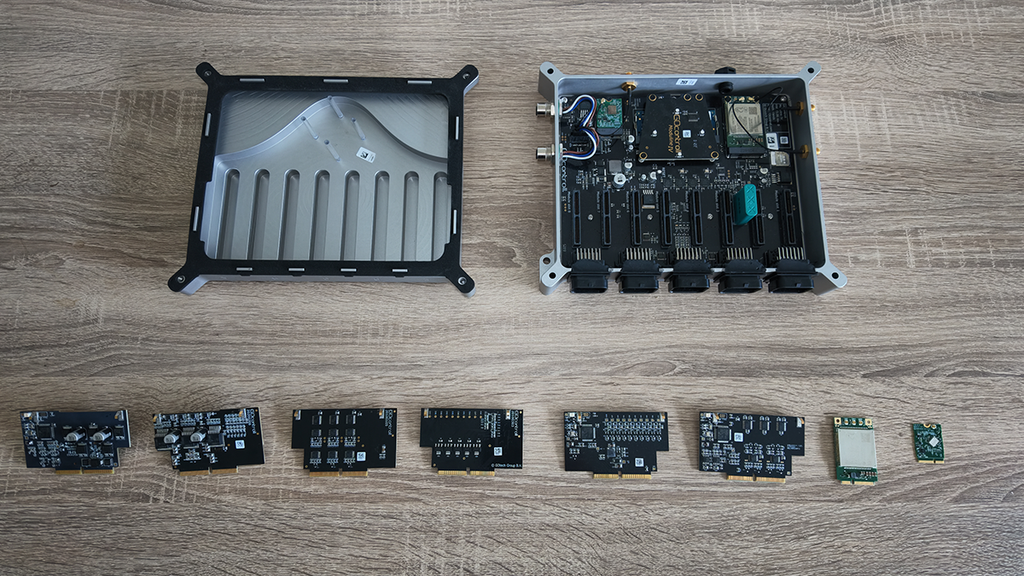
3. Communication: what should the controller work with?
A controller often needs to work with other systems, such as a display, another controller, a sensor or a vehicle.
CAN bus: exchanging information with other systems
CAN bus is widely used in vehicles and mobile machinery. It allows compatible components to exchange information over a CAN network.
This can be useful when your controller needs to work with:
- Another vehicle or machine controller.
- A compatible display.
- A system in an electric vehicle.
- An existing component that communicates via CAN.
In the configurator, you can specify how many separate CAN buses you need. You can also select CAN FD.
A CAN connection alone does not automatically mean that all data from an existing system is available. You also need to know which messages are transmitted and how they are structured.
4G and GPS: remote connectivity and location
Do you want to follow a machine remotely or make information available outside the vehicle? A cellular connection may be useful.
- Sending selected machine data.
- Viewing the location of a vehicle or machine.
- Supporting remote monitoring.
- Performing remote software updates, where supported by the application and its setup.
In the configurator, 4G and GPS are offered together as one interface. A working solution may also require antennas, a cellular connection, and additional software or services.
Wi-Fi and Bluetooth: connecting locally
Wi-Fi and Bluetooth can be used for local communication, for example with a laptop, phone or another compatible device. The available options depend on the controller and configuration.
Want to know whether a specific use is supported? Discuss the device you want to connect and the information you want to exchange with GOcontroll.
A touchscreen for operation and visibility
Does the operator need a screen to view information or control functions? You can indicate that you need a touch display in the configurator.
- Show the status of a machine.
- Operate selected functions.
- Display measurements.
- Provide an interface for a test setup or vehicle.
The appearance of the screen and the functions available depend on the software and the chosen solution.
Example: a controller for a mobile machine
Imagine you are developing a mobile machine with an adjustable component. You want to measure its position, control a hydraulic valve and exchange information with an existing system.
- Measure position with a suitable 0–5 V sensor: Analogue inputs 0–5 V.
- Read a switch operating at 12 or 24 V: Digital inputs at 12/24 V level.
- Control a suitable proportional valve: Power outputs ≤ 4 A.
- Communicate with another CAN system: CAN 2.0B buses or CAN FD, depending on the system.
- Make data available remotely: explore whether 4G/GPS fits the application.
This is a simplified example. The right configuration depends on the actual signals, quantities, voltages, currents, communication requirements and operating environment. The software and any safety functions must also be designed to suit the application.
How to use the GOcontroll Configurator
There are two ways to get started.
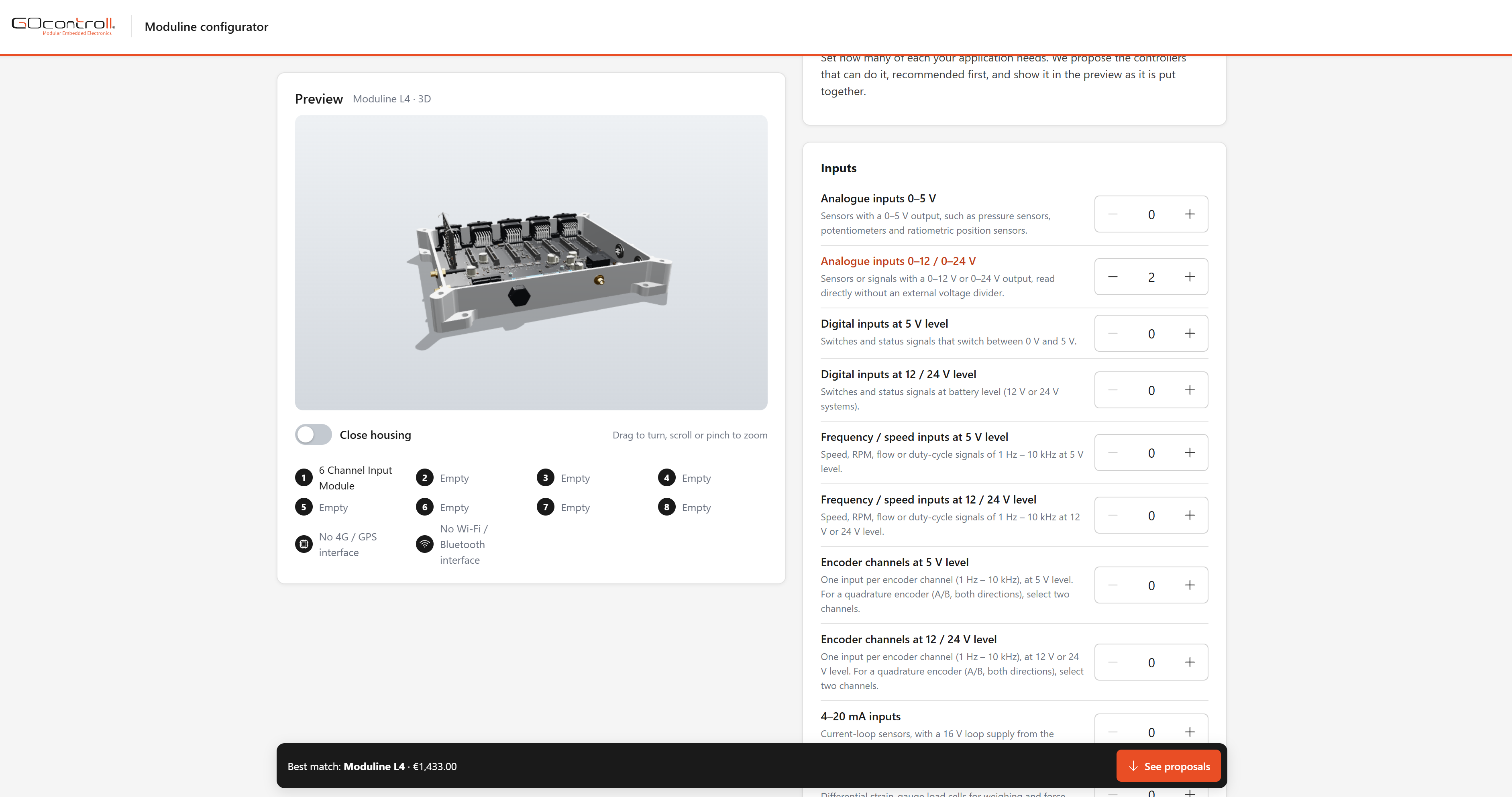
Option 1: start with your requirements
Do you know what you want to connect, but not yet which controller is right for you?
- Open the configurator and choose “From your requirements”.
- Enter the number of inputs, outputs and communication interfaces you need.
- Review the suggested controllers and indicative prices.
- Select “Use this configuration” for the controller you want to explore.
- Review and refine your configuration. Then view the pricing and datasheet or request the controller.
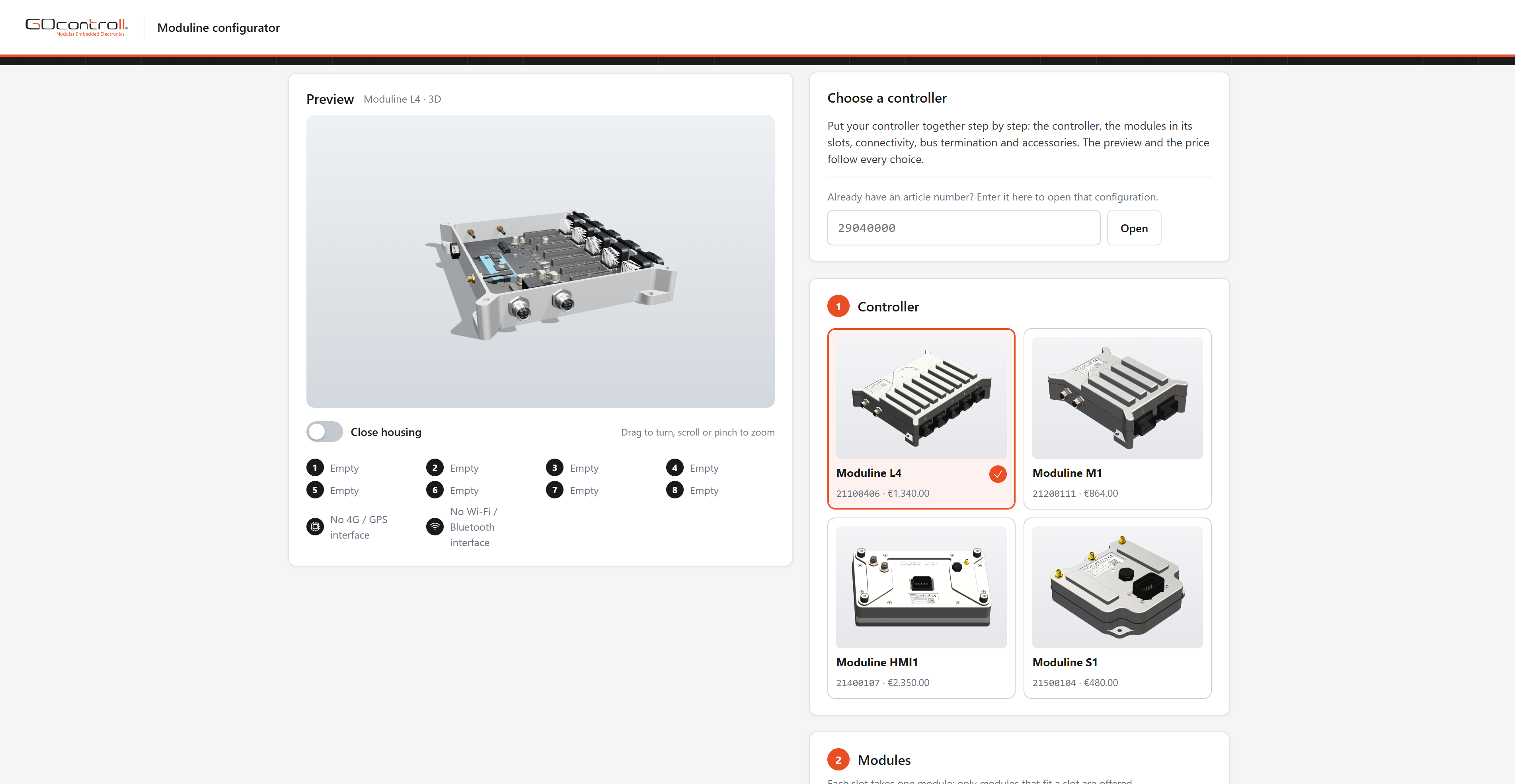
Option 2: choose a controller
Are you already familiar with the Moduline product family, or would you prefer to explore the options yourself?
- Select “Choose a controller”.
- Choose a controller.
- Add modules and any connectivity options.
- Review the accessories and configuration summary.
- View the pricing and datasheet or request the controller.
Prices shown in the configurator are indicative. Final suitability and pricing depend on the complete application and any subsequent quotation.
Don’t have all the answers yet? Start with your application
You don’t need to work everything out before using the configurator. Start with what you already know:
- What do you want to measure?
- What do you want to control?
- Which systems should the controller work with?
- Do you want to view information locally or remotely?
- Which functions might you want to add later?
If you need help or want to check whether your choices work together, our engineers can review your application during a Technical Fit Check. Together, we can explore the connections you need and a possible configuration.
Discover which controller fits your application.
Latest blog
-
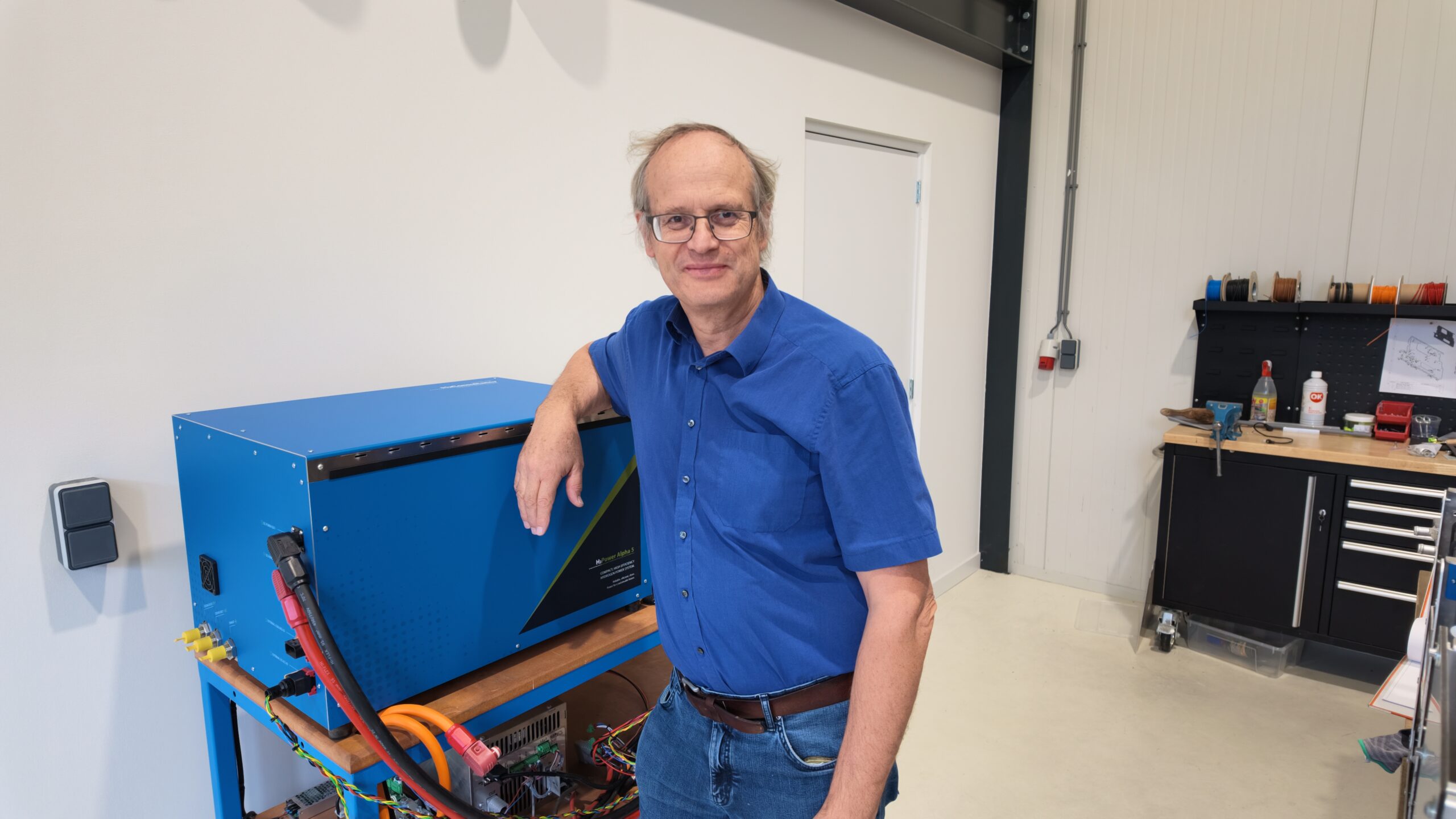
Interview with Huib from H2Consultancy
Selecting a fuel cell is only the beginning. The components, control system and application must then work together. Huib Hupkens van der Elst of…
-
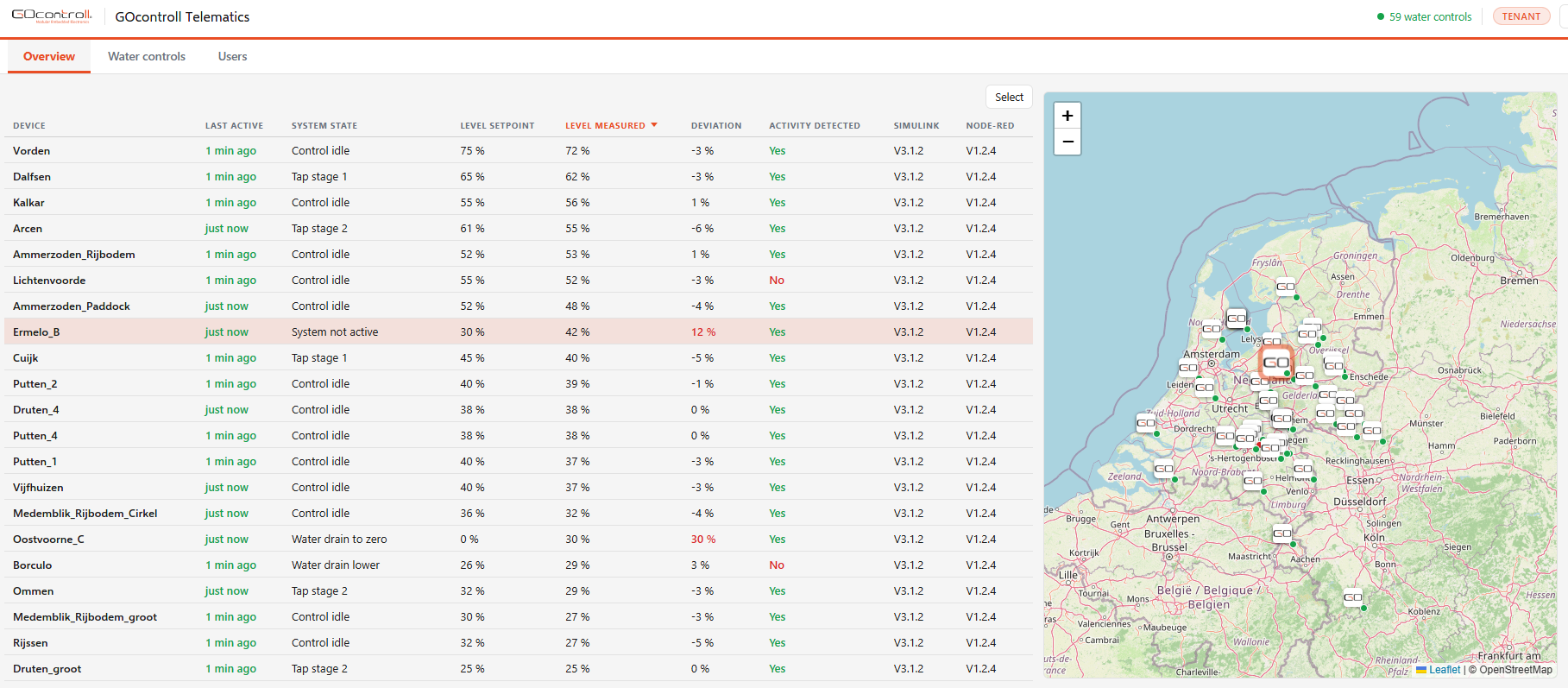
Telematics Retrofit: CAN Data or Added Sensors?
Older machines can join connected fleets, but a CAN connection does not guarantee useful data. Audit available signals, sensor requirements, and platform access before…
-
Dutch Embedded Controller Suppliers: 3 Routes
Compare three sourcing routes: custom electronics, an embedded computer, or a modular machine controller. Define what the supplier delivers and what your OEM still…