
go-can
The go-can tool configures the CAN buses of the Linux based Moduline controllers: the Moduline L4, M1 and HMI1. Run without arguments, it opens a full-screen terminal interface that lists the CAN buses of the controller with their bitrate and state, and sets the bitrate of a bus to 125, 250, 500 or 1000 kbps.
To use the command line interface, a wired ethernet and/or Wi-Fi connection is mandatory.
go-can replaces editing /etc/network/interfaces.d/can.conf, which older images used. The Moduline L4 has the CAN buses can0 to can3; the Moduline M1 and the Moduline HMI1 have can0 and can1. The bitrates of the Moduline CAN buses are 125 kbps, 250 kbps, 500 kbps and 1 Mbit/s, the same four that go-can offers.
Opening the terminal interface
go-can is installed on current images of the Moduline L4, M1 and HMI1. On an older controller, first follow the steps under Older controllers at the end of this page.
Log in to the controller with the SSH terminal and run go-can without arguments.
Command:
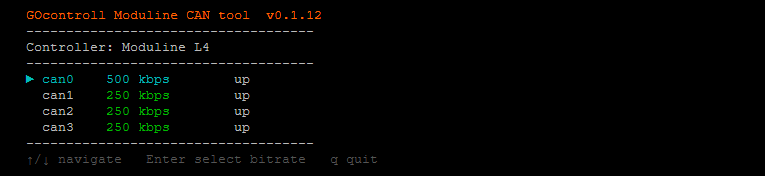
go-canTypical output:
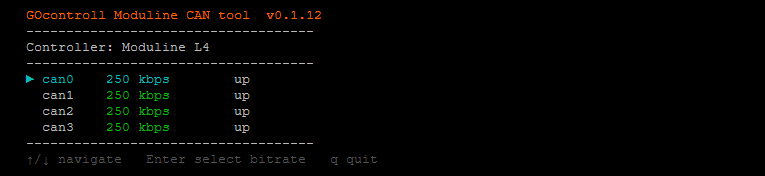
The interface takes over the whole terminal and needs an interactive terminal session. It runs on the alternate screen of the terminal, so after closing go-can the terminal shows what it showed before. When no CAN bus is present on the controller, go-can prints No CAN interfaces present on this system. and stops.
The main screen
The header shows the tool name with its version in orange, and the controller that go-can detected. On a Moduline M1 it reads Controller: Moduline M1:

Below the header, go-can lists every CAN bus on the controller, sorted by name. Each row shows the name of the bus, its bitrate and whether the bus is up or down. The state is read once, when go-can starts.
The bitrate comes from the stored settings of the bus. When a bus has no stored settings, go-can reads the bitrate of the running bus. When that also gives nothing, it shows unconfigured.
The selected row starts with ►, and its name and bitrate are cyan. On the other rows the bitrate is green, or dark grey for unconfigured. When go-can opens, the first bus in the list is selected.
The keys of the main screen:
- ↑ and ↓: move the selection one bus up or down. The selection stops at the first and the last bus.
- Enter: opens the bitrate menu of the selected bus.
- q or Esc: closes go-can.
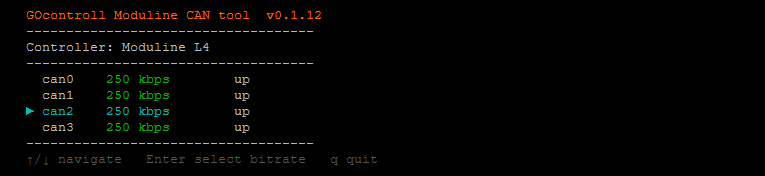
Other keys do nothing in the main screen. After pressing ↓ twice, can2 is selected:
The bitrate menu
Enter on a bus opens its bitrate menu, titled with the name of the bus and Select Bitrate. The menu offers four bitrates:
- 125 kbps
- 250 kbps
- 500 kbps
- 1000 kbps (1 Mbit/s)
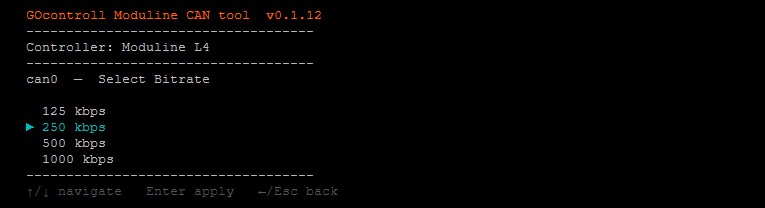
The selection starts on the bitrate the bus has now. When the bus has none of these four, or no bitrate at all, the selection starts on 125 kbps. ↑ and ↓ move the selection and stop at the first and the last bitrate. While another bitrate is selected, the current bitrate of the bus is shown in green:
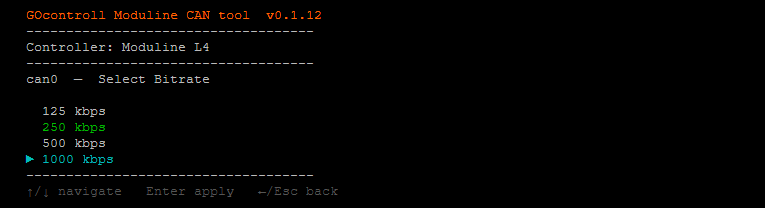
←, Esc or q go back to the main screen without changing anything, with the same bus selected.
Applying a bitrate
Enter in the bitrate menu applies the selected bitrate to the bus, in two steps. First go-can writes the new bitrate to the settings file of the bus, /etc/gocontroll/can.d/<bus>.conf, for example /etc/gocontroll/can.d/can0.conf. Then it applies all stored settings of the bus to the running bus: it takes the bus down, sets its CAN parameters with the ip command, sets the transmit queue length and brings the bus up again. Communication on that bus stops while this happens.
No reboot is needed, and the stored setting is applied again every time the controller starts. go-can prints no confirmation: it returns to the main screen with the same bus selected, showing the new bitrate.
When a step fails, the bitrate menu stays open, and under the key hint go-can shows a red line that starts with Error:, followed by the reason. The main screen keeps the previous bitrate. When saving fails, nothing has changed. When applying fails, the new bitrate is already saved and go-can does not bring the bus up again. The red line disappears at the next key press.
Older controllers
Older controllers may not have go-can installed. Install it from the GOcontroll apt repository on apt.gocontroll.tech. First set up that repository on the controller, including its signing key, as described in apt packages. Then refresh the package list:
apt-get updateInstall go-can:
apt-get install go-canOn these controllers the bitrates are set in /etc/network/interfaces.d/can.conf. From go-can 0.1.13, installing or updating go-can takes the settings of every CAN bus in that file over into go-can, and moves the file to /etc/gocontroll/can.conf.migrated. The installation reports every bus it takes over. The CAN buses keep running as they are; from the next start go-can sets them up. A bus that already has go-can settings keeps them.
When can.conf holds a setting go-can cannot take over, the installation leaves the file as it is and reports which line stopped it. Then open go-can and apply the bitrate of every CAN bus you use, also when it stays the same: go-can only sets up a bus at start when it has stored settings for that bus. The bitrate menu opens on the bitrate the bus runs at, so Enter stores that bitrate. Then remove the old configuration file:
rm /etc/network/interfaces.d/can.confNote: when can.conf stays on the controller, go-can and can.conf both set up the same CAN buses when the controller starts. Which bitrate a bus then gets is unpredictable.
Also see identify to see which version of go-can is installed, and apt packages for the latest version of go-can.