Wi-Fi settings
When your controller is equipped with optional Wi-Fi hardware, the controller standard creates a Wi-Fi access point. The Web UI is able to change the access point settings, and it can also connect the controller to an existing network as a client.
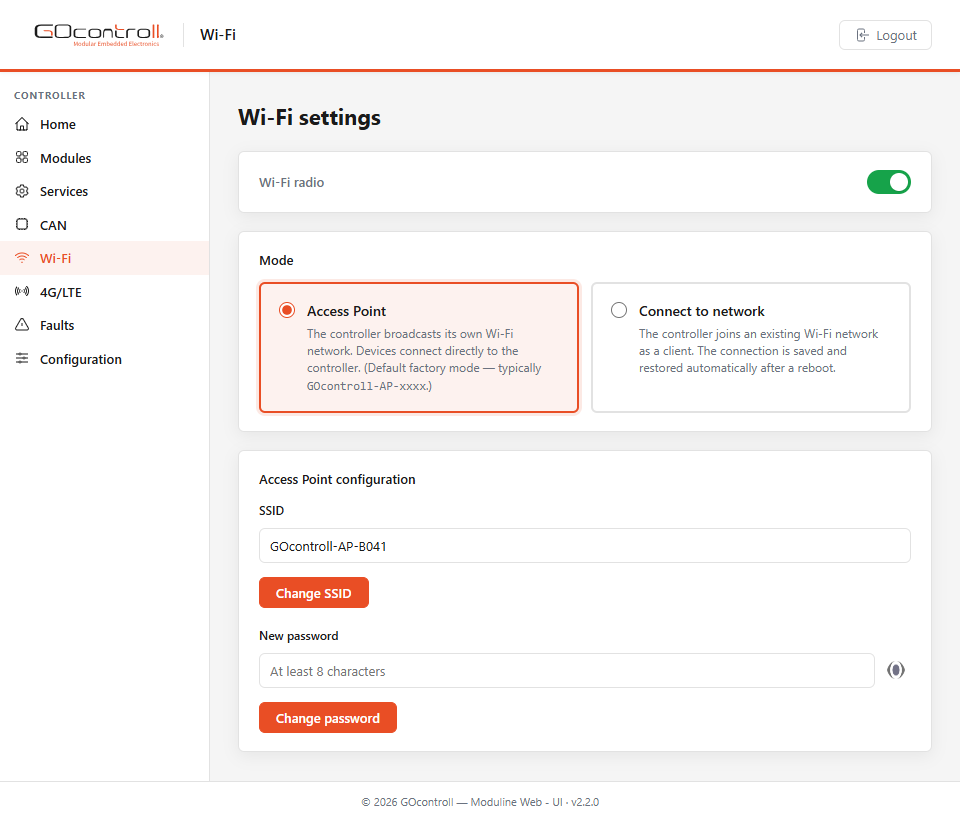
Wi-Fi radio
Switch on of off your Wi-Fi Interface.
Mode
Choose between Access Point and Connect to network. In Access Point mode the controller broadcasts its own Wi-Fi network and devices connect directly to the controller. This is the factory default.
SSID
Choose a new name (SSID) for your access point and confirm with Change SSID.
New password
Create a new (unique) password for your access point and confirm with Change password. Note: the new password must be at least 8 characters.
Connect to an existing network
Select Connect to network to let the controller join an existing Wi-Fi network as a client. The connection is saved and restored automatically after a reboot.
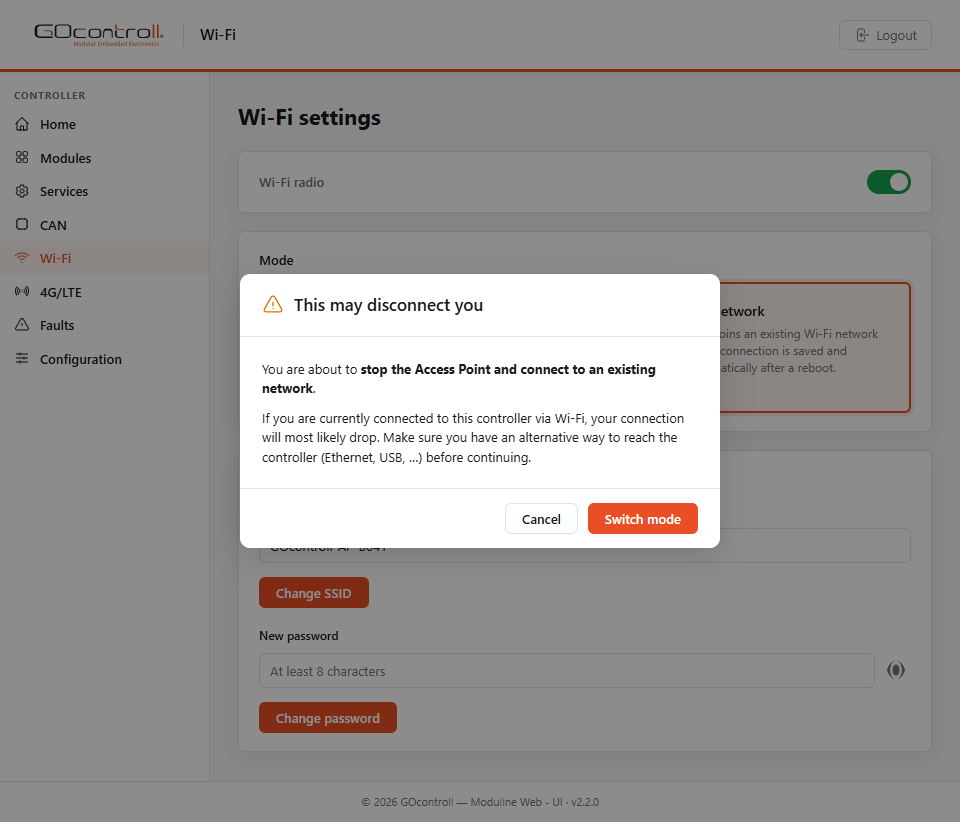
Note: switching the mode stops the access point. If you are connected to the controller over Wi-Fi, that connection will most likely drop. Make sure you have an alternative way to reach the controller, such as wired ethernet or the USB serial console, before you continue.