
go-modules
The GOcontroll Moduline modular controllers can be configured with up to eight modules that add extra input, output or communication functionality. The firmware on these modules is managed with the go-modules tool, which is installed on the controller by default.
To use the command line interface, a wired ethernet and/or Wi-Fi connection is mandatory.
Command:
go-modulesTypical output:
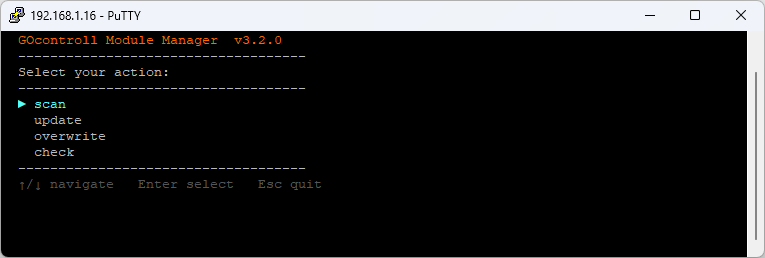
The menu offers four actions: scan, update, overwrite and check. Use the arrow keys to move, Enter to select and Esc to close the tool. In a submenu, Esc or the left arrow takes you back one step.
Note: while go-modules runs it stops the nodered, go-simulink and go-hardware-driver services, because it needs exclusive access to the SPI bus. It starts them again when it exits.
Scan
Scan reports the modules that are installed in the controller.
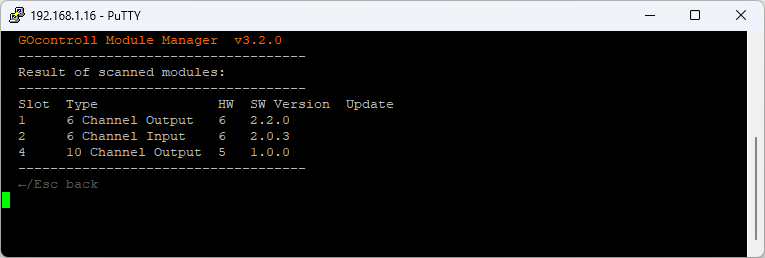
Every row shows the slot, the module type, the hardware version and the installed software version. The Update column stays empty while a module runs the newest firmware that is present on the controller.
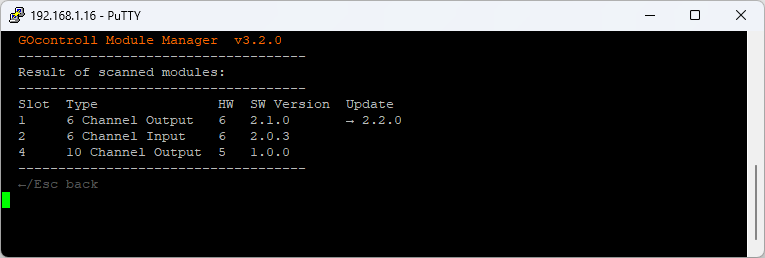
When a newer version is available, the Update column shows the version that update will install.
Check
Check downloads the latest module firmware from the GOcontroll cloud to the controller, and verifies every file against the checksum that is published with it.
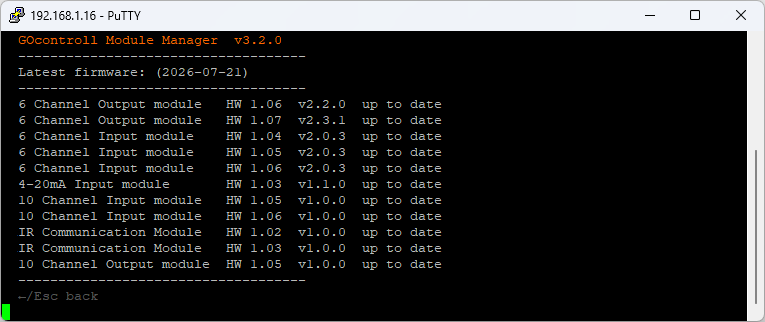
The list shows the newest version per module type and hardware version. up to date means the file is already on the controller, so nothing is downloaded.
Add the verbose option to also show the release date and the changelog of every version:
go-modules check --verbose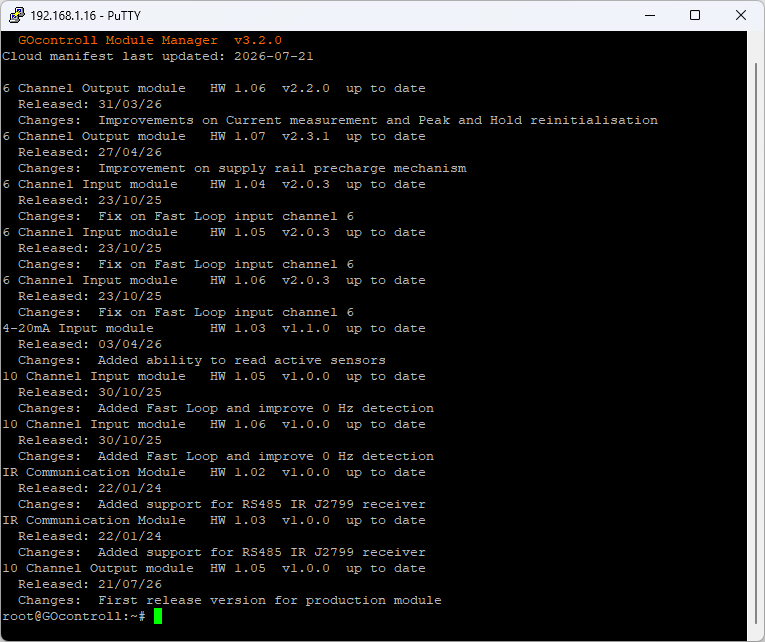
Update
Update installs newer firmware on the modules. It only uses firmware that is already on the controller, so run check first. Update can NOT install an older version.
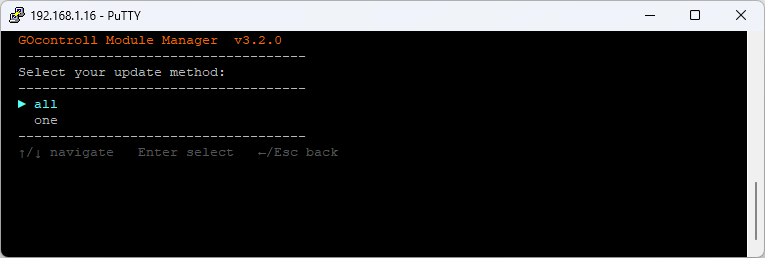
You can update every module at once, or pick a single module.
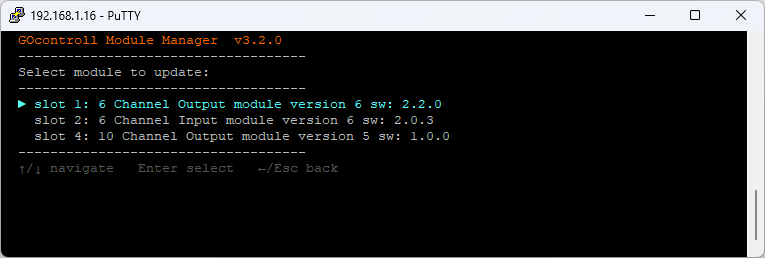
Note: all starts the upload to every module in parallel, over the same SPI bus. Updating one slot at a time keeps the process easier to follow and easier to trace when a module fails.
go-modules update 1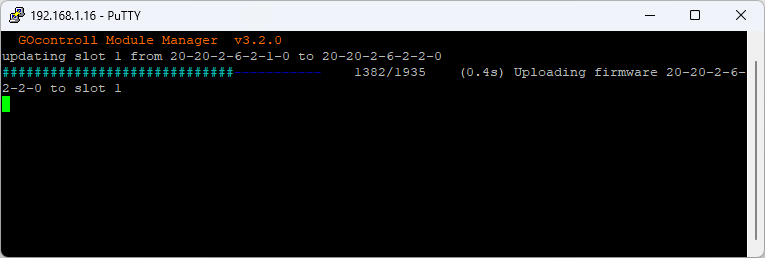
When the upload has finished, the tool reports the result:
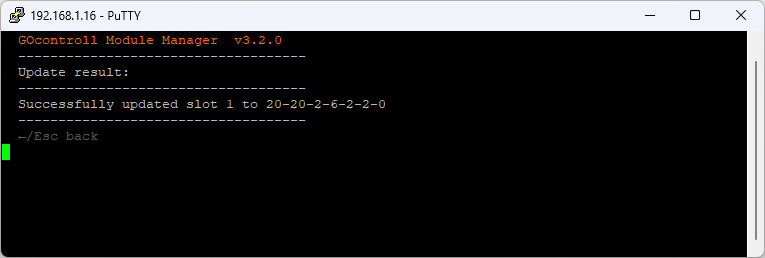
Overwrite
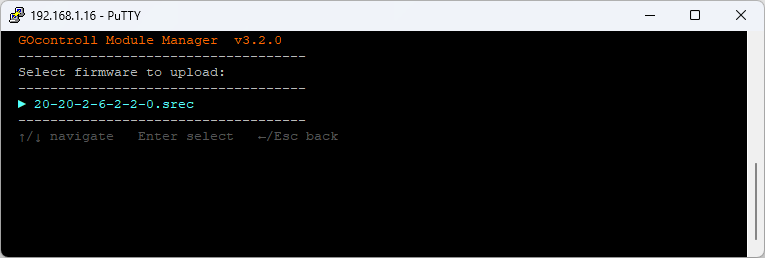
Overwrite installs the firmware version that you select yourself. Use it when you need to install an older version, for example to roll a module back.
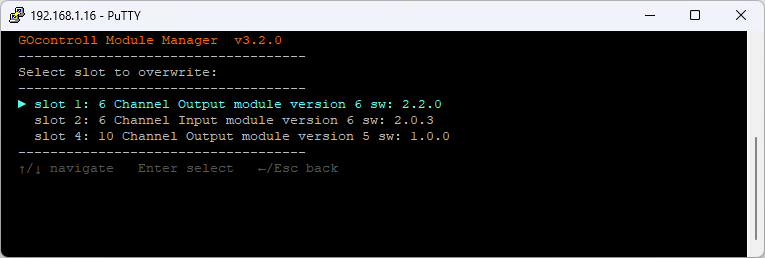
Only firmware files that match the hardware version of the selected module are offered.
Running go-modules from a script
Every action is also available as a command. The tool then performs that one action and exits, so it can be used from a script or a service.
go-modules scan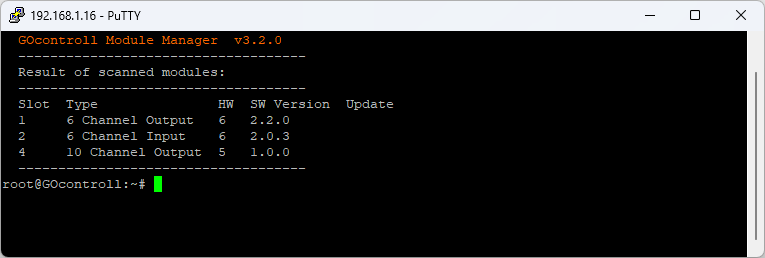
Command reference
go-modules– starts the interactive menu.go-modules scan– lists the modules that are installed in the controller.go-modules check– downloads the latest firmware from the GOcontroll cloud. It runs without module hardware, so it also works on a controller with empty slots.go-modules check --verbose– same, and also shows the release date and changelog.-vis accepted as well.go-modules update all– updates every module.go-modules update <slot>– updates the module in one slot.go-modules overwrite <slot> <firmware>– installs a specific firmware file, for examplego-modules overwrite 1 20-20-2-6-2-2-0.srec.
The tool reports its result with an exit code:
0– the action finished, or the menu was closed.1– check could not reach the firmware manifest.255– the controller is not supported, or an unknown command was given.
Note: go-modules has no help option. An unknown argument, including --help, prints the usage text as an error and exits with code 255. It does so only after it has stopped the nodered, go-simulink and go-hardware-driver services and rescanned the modules, so it is not a harmless command to try.
Also see identify to check which modules and firmware versions a controller reports, and systemd services to manage the services that go-modules stops while it runs.