
Create model
At this point it is important to have the complete toolchain installed.
From toolbox version 4.6.0, it is NOT required to setup a project environment first. Simply creating a model from the GOcontroll Linux template is enough to start with your project. More detailed information about setting up you Simulink model can be found in the README of the software repositorie
Referenced or embedded toolbox
Your model will use a reference to the installed toolbox by default. This means, when your toolbox is updated, blocks in your project will automatically be updated on a next start of your model. Since updates can have bug fixes or stability improvements, this is the preferred way to work. In case you want to lock the version of a toolbox together with your project, you can choose to embed the toolbox in your project. Setting up a project with embedded toolbox is slightly different and explained here.
Create a Simulink Model
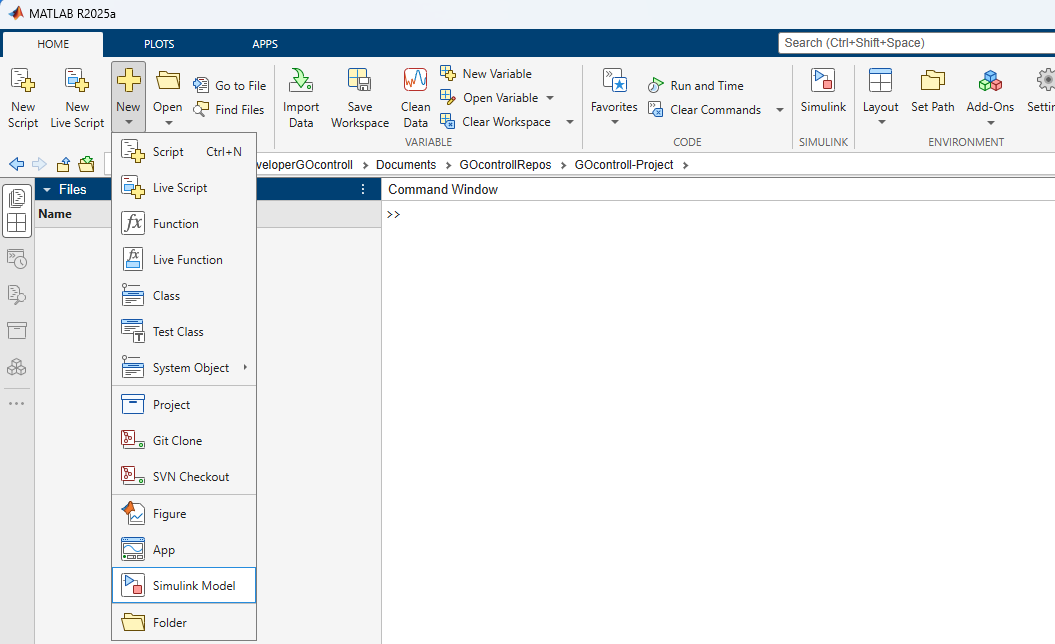
- Select tab Home
- Select New
- Click Simulink Model
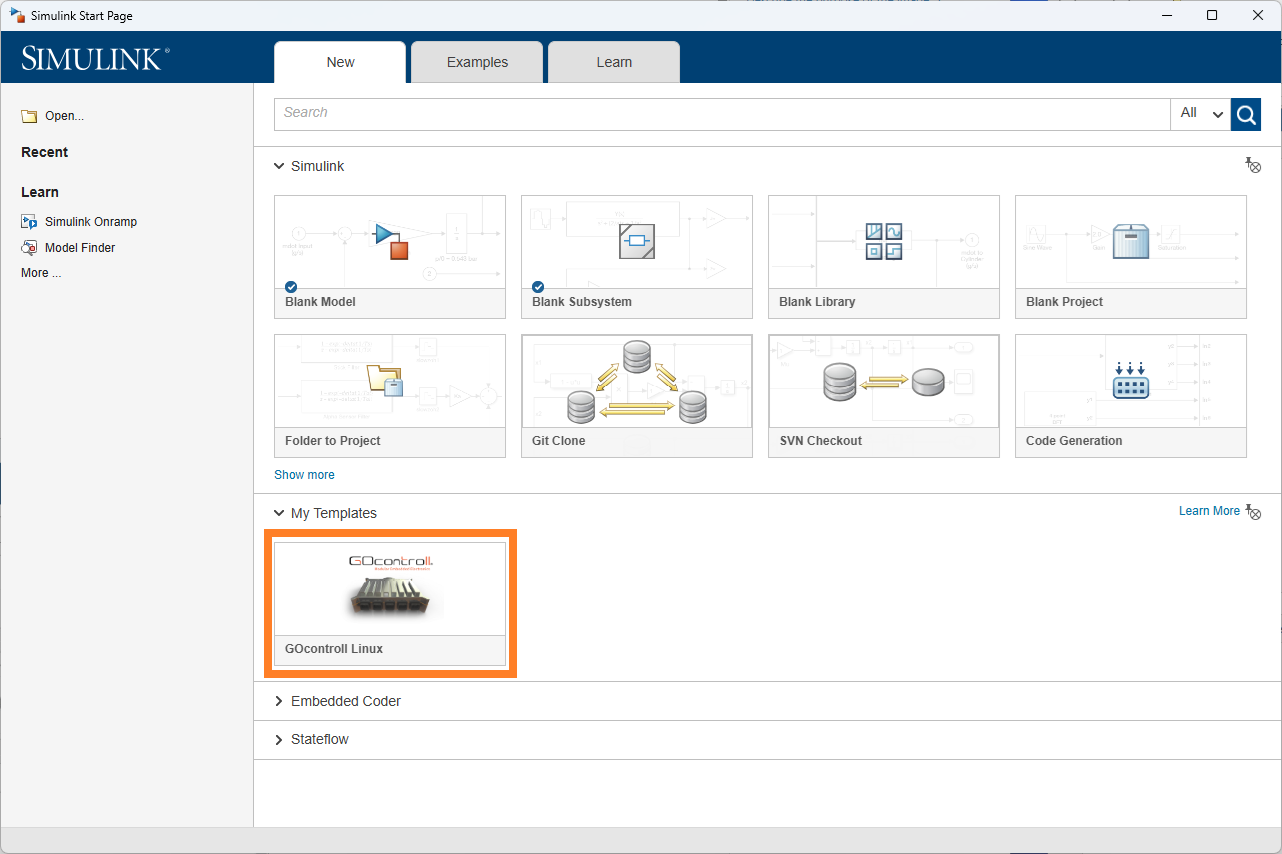
- Now you can create a template model (Mandatory) by clicking GOcontroll Linux
- Your model is being created.
Before you can build your model, it is important to save the model. Otherwise the Simulink project will not find any reference to the Simulink model.
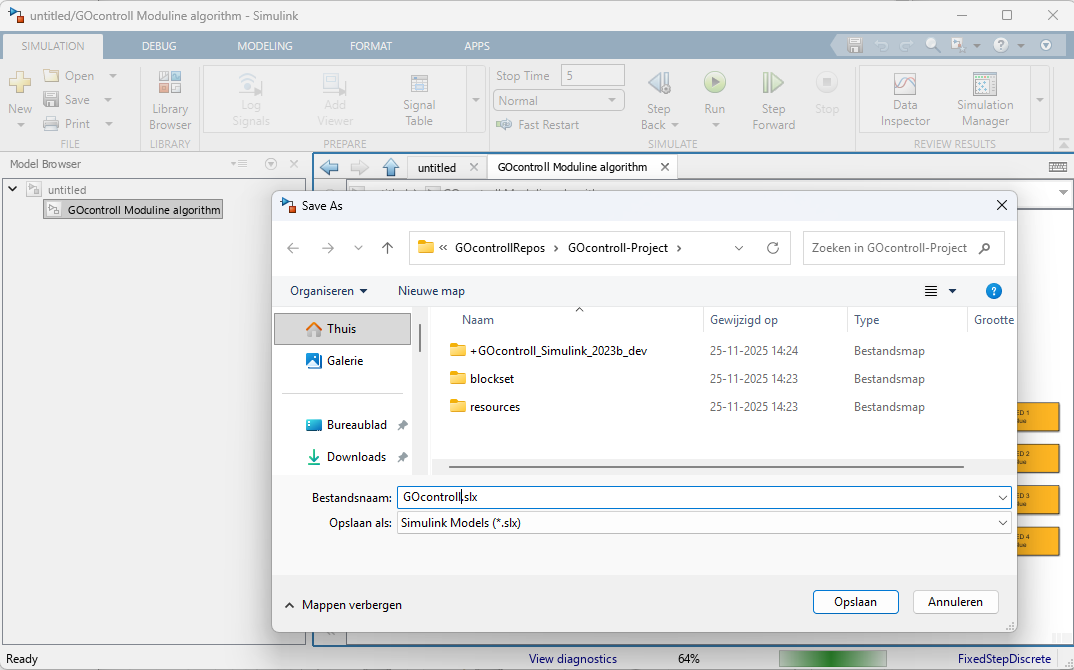
- In the model click on Save
- A pop up wil open. Type a model name and click Save
Now you are ready to compile/build your project for the first time. To build your project, you first need to open the Embedded Coder perspective of the Simulink environment.
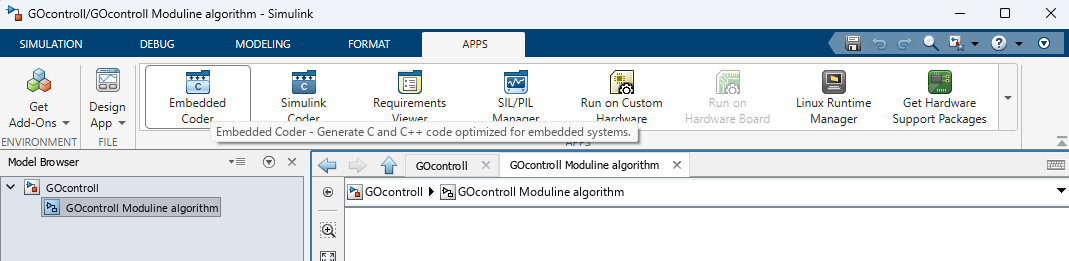
- Navigate to the tab APPS
- Click on Embedded Coder
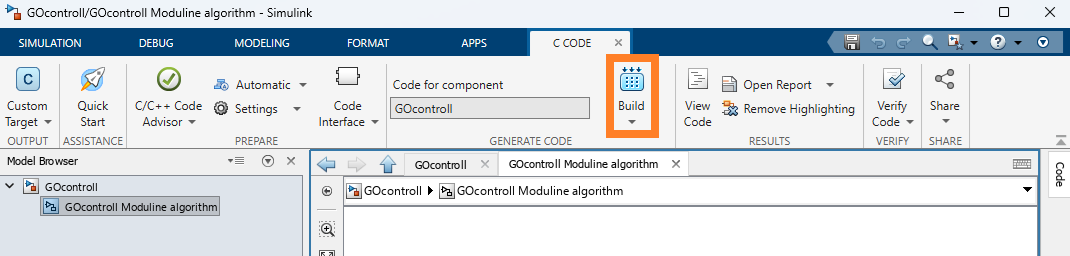
A new tab called C CODE is added. Simply clicking the Build button wil start a new software build of your model.
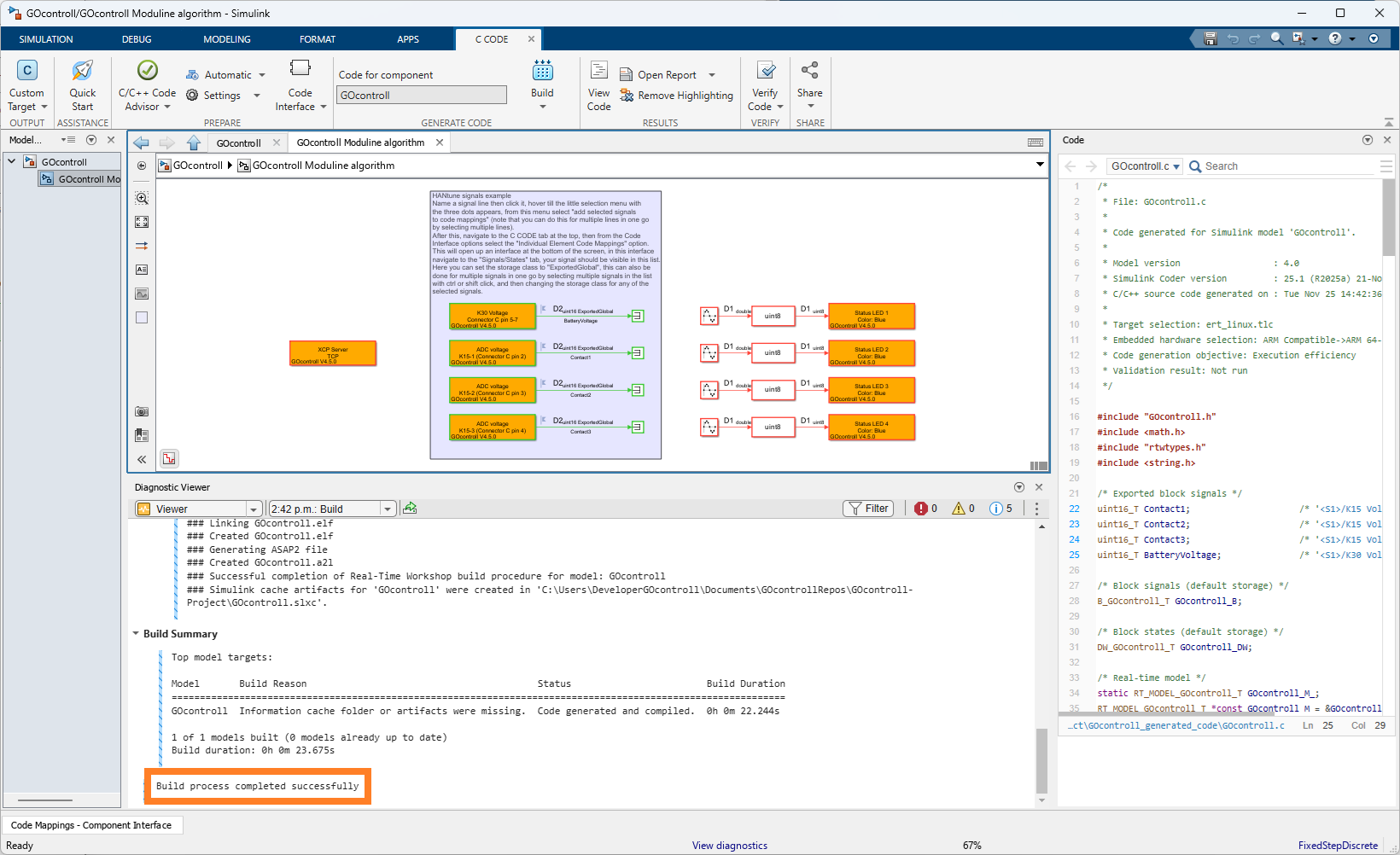
The diagnostic viewer will provide some feedback about the build process. Depending on your machine and the model, a build can take some time. After a succesfull build, the output will be as follow.
Create a Simulink Model with embedded toolbox
To embed a fixed version of the toolbox into your project, a toolbox release can be downloaded from our repositorie. Once you have downloaded the Source code from a release and unzipped it, you can put the source code folder named GOcontroll-Simulink-x.x.x into your project folder. The screenshot below gives a typical example of the folder structure.

Now open Matlab and navigate to your project folder.
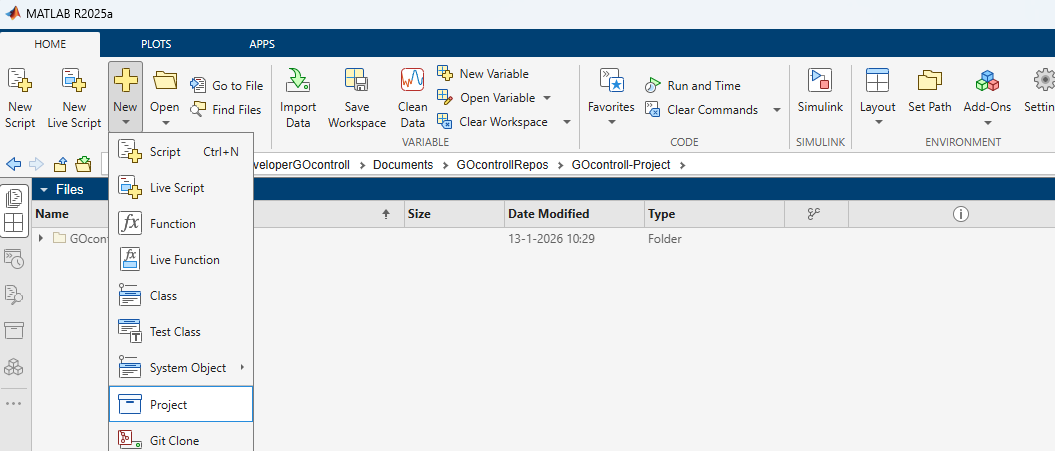
- Click New
- Select Project
- Provide a valid project name (GOcontroll-Project in this example)
- Click OK
The Project TAB will open. Next step is to refer to the downloaded toolbox.

- Select References

- Add a new Relative project reference

- Open the source code folder of the toolbox which was downloaded in the first step.
- Select GOcontrollSimulink2023b.prj
- When a window pops-up on thrusted authors, Click Open.
Your project is now set-up to work with a fixed version of the toolbox. You can now add a new model (described above) to your project to start developing your software in Simulink